Create catalog part
Catalog Parts are used to bind the geometry to certain dimensions and to provide information, such as material, standard etc. to piping components, standard components, joint materials, beams, plates and cable tray parts.
Physical dimensions of a component (including weight) are stored in a dimension table. Several parts can refer to the same dimension table for example with different material.
Procedure to create a Catalog Part:
-
In Project Environment browse item Components / Catalog Parts / Catalog Parts.
-
Click New > Catalog Part.
-
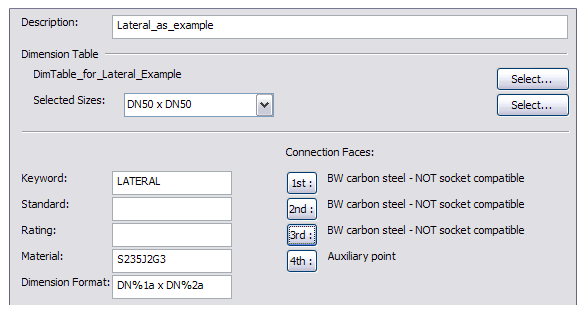
Name the catalog part as "Lateral_as_example".
-
Select the dimension table you just created, "DimTable_Lateral_Example".
-
Set the dimension format as DN%1a x DN%2a to be able to select the part sizes.
-
Select all the part sizes from the list.
-
Right-click to set the keyword as "LATERAL" to be used for hierarchies and searches.
-
Write S235J2G3 as material if it is not found in the drop-down menu.
-
Set the connection faces 1...3 as "BW carbon steel – Not socket compatible".
-
Set the 4th connection face as "Auxiliary point".
-
Add attribute Component Type as Piping / Fitting / Branch / Lateral for hierarchies.
-
Click OK to create part sizes of catalog parts
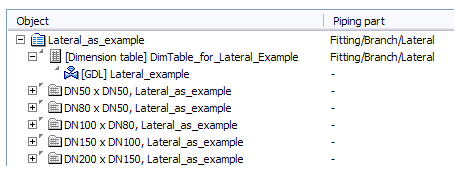
In the picture below you can see the dependencies of catalog part "Lateral_as_example". It uses dimension table "DimTable_for_Lateral_example" and geometric model "Lateral_example" and the part sizes are listed as DN? x DN?. Also you can see that the component type is set for catalog part and dimension table objects.